How to Run an MT5 Expert Advisor on a VPS Without Silent Failures
Most live EA mishaps come from operational mistakes, not code bugs. Use this VPS checklist for Algo Trading gates, RDP sessions, Magic IDs, and logs.
Running an MT5 Expert Advisor on a VPS looks trivial until an unattended setup stops trailing open positions at 03:00 server time — or fires every breakout order twice because your home desktop stayed logged into the same broker account. In live support logs, operational mistakes ruin far more accounts in month one than MQL5 logic bugs.
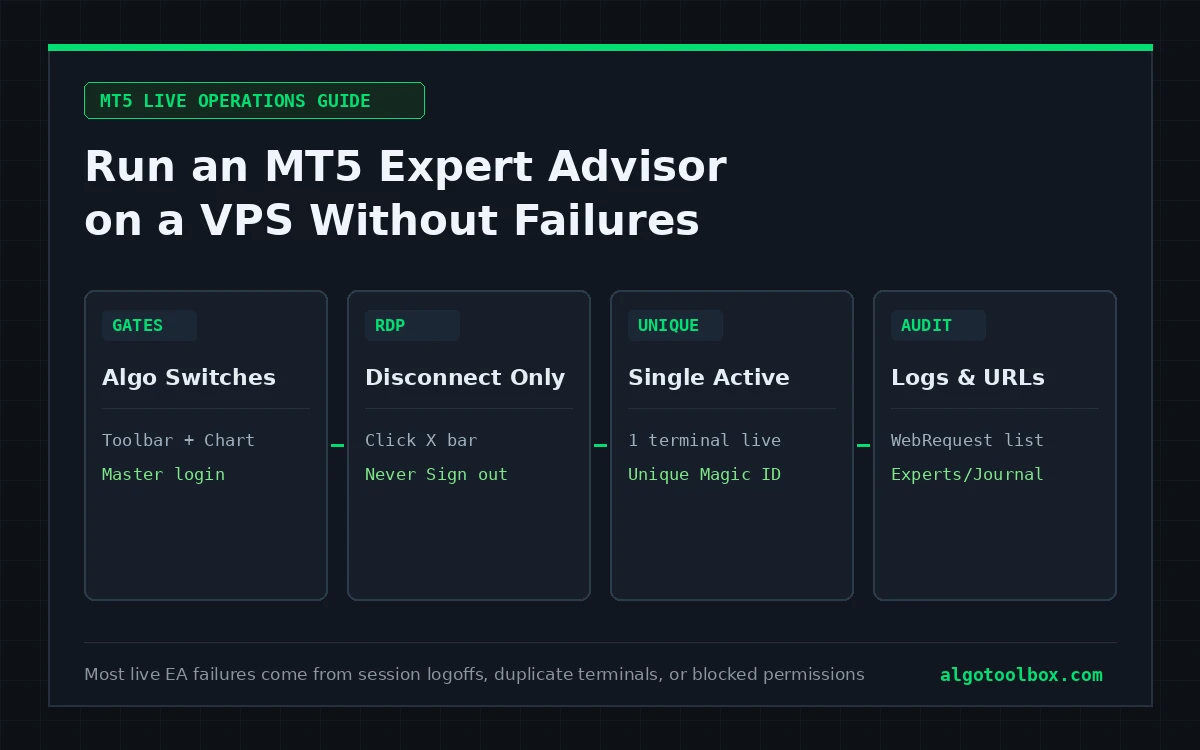
Before leaving any automated system unattended on demo or live funds, walk through the four operational gates below: MetaTrader 5’s dual trading permissions, Windows Remote Desktop session persistence, single-terminal and Magic Number isolation, and WebRequest plus daily log verification.
On this page7 sections
- Which MT5 EAs Need 24/5 Uptime (and Windows VPS vs Virtual Hosting)
- Gate 1: The Two-Switch “Algo Trading” Trap and Account Resets
- Gate 2: Closing RDP Properly and Stopping Unattended Reboots
- Gate 3: Duplicate Terminals, Symbol Suffixes, and Magic Numbers
- Gate 4: WebRequest Whitelists, VPS RAM Trim, and Log Checks
- Where to Go Next
- FAQ
Which MT5 EAs Need 24/5 Uptime (and Windows VPS vs Virtual Hosting)
MetaTrader 5 Expert Advisors run locally inside terminal64.exe, not on your broker’s trade server. Only hard pending orders and broker-side Stop Loss / Take Profit prices live on the broker server once placed; every trailing update, partial close, equity circuit breaker, and signal calculation stops the instant your terminal disconnects or your PC sleeps.
How badly downtime hurts depends on how the EA manages open trades:
- Tick-managed partial exits and break-even shifts: our 15M Gold Scalper closes positions in a
50/30/20partial ladder acrossTP1/TP2/TP3, moves the stop to entry plus buffer afterTP1, and enforces a bar-count time stop. If a home machine goes to sleep mid-trade, the broker’s initial swing stop still sits on the server, but partial profit locks and break-even moves never fire. - Software basket exits without broker SL/TP: basket and grid robots such as Icarus Grid Bias MT5 open market orders without per-order stop-loss or take-profit levels and close the combined cycle in software once floating profit hits target (or daily drawdown hits
20%). Losing VPS connectivity mid-basket leaves leveraged positions completely unmanaged. - Sub-minute trailing and software timers: in our Lizard EA MT5 test,
56%of trades closed inside sixty seconds viaDynamic Hightrailing, backed by an 8-minute software fakeout timer and an internalVirtual SLnear broker freeze levels. An offline terminal disables all three layers.
You have two standard ways to host MT5 24/5, and they carry different technical limits:
| Feature | Standalone Windows Server VPS (RDP) | MetaQuotes Built-In Virtual Hosting |
|---|---|---|
| How it runs | Full Windows desktop running one or more terminal64.exe instances |
Headless terminal container rented inside MT5 Navigator |
| Accounts per instance | Multiple MT5 installs allowed (constrained only by RAM/CPU) | Strictly one trading account per hosting subscription |
| DLL imports | Supported if enabled (though untrusted DLLs carry security risk) | Permanently blocked — DLL-dependent EAs cannot run |
Changing inputs / .ex5 |
Edit directly on the VPS chart in real time | Must click Synchronize Experts, Indicators again after every local edit |
| Session maintenance | You manage RDP disconnects, Windows Updates, and disk space | Managed by MetaQuotes (Virtual Hosting docs) |
Gate 1: The Two-Switch “Algo Trading” Trap and Account Resets
Attaching an EA to a chart and seeing its dashboard panel draw on screen does not mean MetaTrader 5 will allow it to send orders. Visual chart objects (OBJ_LABEL, rectangles, dashboards) render inside OnInit() and OnTick() even when order execution is locked out.
Verify all four permission checks in order:
- Global terminal permission (
Ctrl+Eand Options): open Tools → Options → Expert Advisors (Client Terminal Settings) and tick Allow algorithmic trading. Confirm the Algo Trading button on the top toolbar shows a green play icon rather than a red stop square. - Watch the two auto-disable checkboxes right below it: by default, MT5 ticks Disable algorithmic trading when the account has been changed and Disable algorithmic trading when the profiles have been changed. That is a sensible safety brake — if you test on a demo login and then log into your live account, MT5 intentionally flips Algo Trading back to red. Remember to re-enable it once you confirm your chart symbol and lot size on the new login.
- Per-chart EA permission (
Commontab): pressF7on the chart (or right-click → Expert Advisors → Properties), open the Common tab, and confirm Allow Algo Trading is ticked for that specific chart. Inspect the badge in the top-right corner of the chart: a bright blue graduation cap means live trading is permitted; a greyed-out icon means the EA is running in display-only mode. - Master password and Hedging account mode: logging in with the read-only Investor password streams live ticks normally while rejecting every trade request (
Trade is disabled). Likewise, check the MT5 window title bar for(Hedging)vs(Netting): multi-position retail EAs — including 15M Gold Scalper, Icarus Grid Bias MT5, Ghost Scalper MT5, and Lizard EA MT5 — require a Hedging account so independent or opposite positions are not netted into a single averaged ticket.
Gate 2: Closing RDP Properly and Stopping Unattended Reboots
Click × on the Remote Desktop Bar — Never Click Windows Sign Out
The single most common first-week VPS failure happens thirty seconds after setup finishes. A trader verifies the blue EA badge, opens the Windows Start menu inside the VPS, and clicks Sign out (or Log off) to exit cleanly.
On Windows Server, Sign out closes your interactive user session and terminates every application running inside it — including terminal64.exe. The VPS itself stays powered on, so everything looks normal in your hosting control panel, while MetaTrader 5 sits closed until the next time you connect.
To leave MetaTrader 5 running 24/5, close the Remote Desktop client window using the × button on the pinned top RDP connection bar (or close the macOS/Windows Remote Desktop app window directly) and confirm the prompt telling you that remote programs will continue running while disconnected.
Prevent Mid-Week Windows Reboots and Check Restart State
Even if you disconnect properly, an unmanaged Windows VPS that installs cumulative updates at 03:00 Wednesday will reboot back to the Windows login screen with zero terminals running unless configured otherwise:
- Pause automatic mid-week restarts: schedule Windows Updates manually over the weekend after Friday’s market close, and disable automatic restarts while users are signed in via Windows Update settings or Local Group Policy (
Computer Configuration → Administrative Templates → Windows Components → Windows Update → No auto-restart with logged on users). - Save your workspace cleanly once configured: MetaTrader 5 writes open chart templates, attached EAs, and current input states (
profiles\charts\) cleanly to disk when closed normally, not when killed by a sudden power reset. Once your charts, symbols, and.setfiles are loaded, click File → Exit once, relaunch MT5 immediately, and verify every chart,.setvalue, and blue EA badge comes back identically. - Know how your EA recovers open positions after a restart: stateless EAs re-identify open trades on startup by matching chart
_SymbolandMagic Number. EAs that track multi-step state — such as 15M Gold Scalper‘s partial-close steps and recovery counter — include a dedicatedsave-state-on-restartinput so internal progress persists across terminal restarts. Check whether that toggle is enabled before trading live.
Gate 3: Duplicate Terminals, Symbol Suffixes, and Magic Numbers
Never Leave the Same EA Active on Both Your PC and Your VPS
If you set up an EA on your home computer, copy the folder or synchronize to MetaQuotes Virtual Hosting, and leave Algo Trading enabled on both machines under the Master password, both terminals will execute every signal independently.
On an entry bar, your account opens double the intended lot size. Worse, on every subsequent tick, two separate trailing-stop loops send competing PositionModify() commands separated by 150 milliseconds of home-internet latency, spamming your broker server with modification errors (TRADE_RETCODE_NO_CHANGES or freeze-level rejections). Once your VPS is live, either disable Algo Trading (Ctrl+E) on your home terminal or log in from home using the read-only Investor password.
Check Broker Symbol Suffixes and Load .set Presets Cleanly
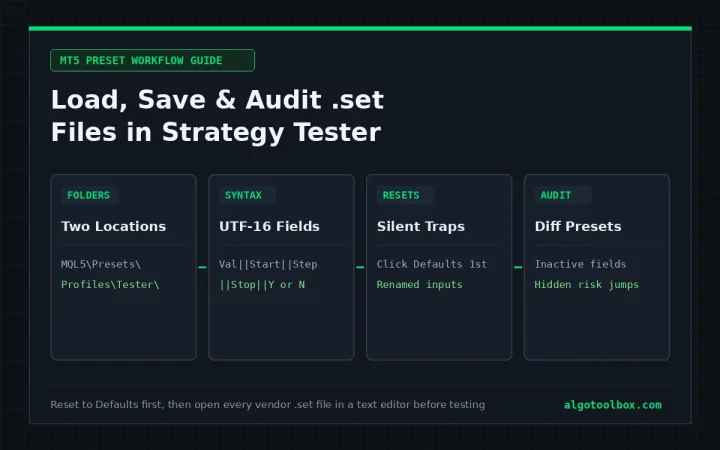
Moving from a Strategy Tester demo to a live cent or raw-spread server frequently changes symbol names — XAUUSD becomes XAUUSDc, XAUUSDm, or XAUUSD.raw. Always drag the exact tradable symbol from Market Watch onto the chart (greyed-out base symbols often stream quotes with trading disabled), confirm the chart timeframe (M1, M15, or H1) matches the EA’s design, and load your audited .set file following How to Use, Save and Audit MT5 .set Files (and our folder placement rules in How to Install an MT5 Indicator or EA from GitHub).
Audit Magic Number Ranges When Running Multiple Charts
Every MQL5 order carries an integer identifier (POSITION_MAGIC) so an EA knows which trades belong to it and which belong to manual clicks or other robots. Two subtle collisions catch traders who run multiple EAs on one account:
- Same EA on two timeframes of the same symbol: as noted in our Icarus Grid Bias MT5 report, position management filters by chart symbol and
Magic Number(default1999), not by chart window ID. Attaching two copies of the same EA toXAUUSDM15 andXAUUSDH1 without changing one copy’sMagic Numbercauses both instances to count, average, and close each other’s positions. - Multi-engine EAs that reserve sequential Magic IDs: a single chart attachment does not always use just one
Magic Number. Lizard EA MT5 runs six breakout zones (A1throughB3), assigning six distinct Magic Numbers simultaneously; Ghost Scalper MT5 manages four independent strategies (Ghost A–D). If Robot 1 starts atMagic = 1000and internally claims1000–1005, setting Robot 2 on the same symbol to1001creates an instant cross-management collision. Space custom Magic Numbers by hundreds or thousands (10100,20100,30100).
Gate 4: WebRequest Whitelists, VPS RAM Trim, and Log Checks
Whitelist Exact https:// Domains for WebRequest() Filters
Inside MQL5, any Expert Advisor that queries an external economic calendar API or a vendor’s cloud server uses WebRequest(). For security, MetaTrader 5 blocks all outbound WebRequest() calls by default and returns runtime error 4014 (ERR_FUNCTION_NOT_ALLOWED).
If your EA uses external feeds — such as the news filters on Ghost Scalper MT5 and Lizard EA MT5, or the calendar and server filters on Scalping Robot Pro MT5 — open Tools → Options → Expert Advisors, tick Allow WebRequest for listed URL, and paste the exact base URL (https://...) specified in the product manual. Without that entry, many EAs either trade right through high-impact CPI/NFP spikes unguarded or halt all entries silently. (By contrast, EAs written against MT5’s native MQL5 Calendar functions read the terminal’s built-in Calendar tab without needing a WebRequest URL.)
Keep Entry-Level VPS Plans Lean
A single clean MT5 terminal runs comfortably on a 1–2 vCPU / 2 GB RAM Windows VPS if you trim three defaults:
- Hide unused symbols in Market Watch (
Ctrl+M): right-click inside Market Watch and click Hide All once your trading charts are open. Streaming live ticks for 150 unused forex, index, and crypto pairs wastes CPU and bandwidth round the clock. - Cap
Max bars in chart: under Tools → Options → Charts, set Max bars in chart to5,000or10,000(restart MT5 to apply) unless an attached indicator explicitly needs multi-year bar lookbacks. - Disable terminal sound events and news headlines: untick Enable under Tools → Options → Events and untick Enable news under Server if your EA does not read broker text news, trimming background memory churn.
Check Both Experts and Journal Once a Day
Do not judge VPS health solely by looking at open P/L on MT5 Mobile. Mobile apps show executed deals and current equity, not failed order attempts or local MQL5 errors. Open the VPS Toolbox (Ctrl+T) once a day during your first two weeks and check both log tabs:
Expertstab (MQL5\Logs\): recordsPrint()messages from the EA itself — preset initialization values,WebRequesterror4014warnings, spread-cap skips (such asMaxSpread = 300blocking rollover entries), and indicator handle load failures.Journaltab (Logs\): records terminal-to-broker events — ping latency to the access server, connection drops and automatic rescans,Algo Trading disabledswitches, freeze-level rejections, and repeated margin refusals (like the"Not enough money"order loops we documented in Scalping Robot Pro MT5 when equity guards sit at0).
Where to Go Next
- How to Install an MT5 Indicator or EA from GitHub — exact
MQL5\Experts\vsMQL5\Indicators\folder paths and clean compilation steps - How to Use, Save and Audit MT5 .set Files — how to verify live preset inputs before attaching an EA to a VPS chart
- Why a Good MT5 Backtest Dies Live — how live spread widening, latency, commission, and swap compare against Strategy Tester runs
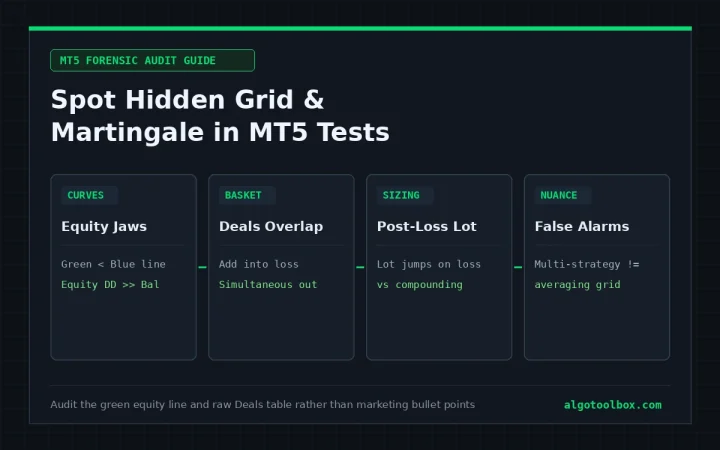
- How to Spot Hidden Grid and Martingale Logic in an MT5 Backtest — why basket EAs carry severe unmanaged-disconnect risk
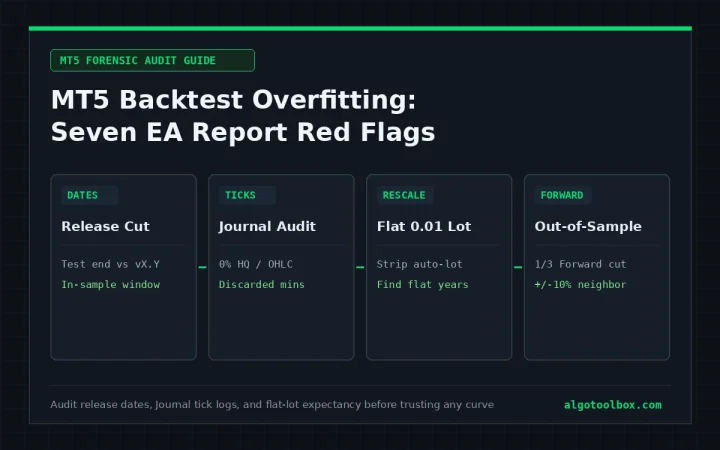
- MT5 Backtest Overfitting: Seven Red Flags in EA Sales Reports — how to validate an EA on a 90-day demo VPS before funding a live account
- How We Test — how our bench separates Strategy Tester simulations from live VPS execution
FAQ
Does closing Remote Desktop stop my MT5 Expert Advisor on a VPS?
No — provided you close the Remote Desktop window using the × button on the connection bar (disconnecting your viewer while leaving the Windows user session active). If you open the Windows Start menu inside the VPS and click Sign out or Log off, Windows closes terminal64.exe and stops all Expert Advisors immediately.
What ping latency in milliseconds do I actually need for an MT5 VPS?
For H1 or M15 bar-open and swing EAs, anything under 30–80 ms near your broker’s data center (typically London LD4, New York NY4, Amsterdam, or Singapore) makes virtually zero difference compared to normal broker spread variation. Single-digit latency (1–5 ms) mainly benefits high-frequency pending-stop scalpers or sub-minute trailing stops where fast PositionModify() round trips reduce freeze-level misses.
Why does my EA show a blue hat on the VPS chart but never open trades?
Check the Experts and Journal tabs in Ctrl+T first. The four usual culprits are logging in with an Investor (read-only) password, attaching the EA to a greyed-out non-tradable symbol instead of your account’s suffixed symbol (XAUUSDc / XAUUSD.raw), hitting the EA’s internal MaxSpread or session-hour filter, or failing a required WebRequest() calendar check because the URL is missing from Options → Expert Advisors.
Can I monitor my VPS trading account from MT5 Mobile or my home PC?
Yes. Watching the account from MT5 Mobile (iOS/Android) is completely safe — just avoid manually closing partial legs of a grid or multi-order EA unless you also disable the EA on the VPS first, otherwise the robot may immediately re-open the missing leg. On a home PC, log in with the Investor password or keep Algo Trading turned off so two terminals never manage the same orders simultaneously.
When should I use MetaQuotes Virtual Hosting instead of a Windows VPS?
MetaQuotes Virtual Hosting works well when you run a single trading account with pure .ex5 robots that do not require external DLLs, custom desktop scripts, or frequent intraday input edits. Choose a standalone Windows Server VPS if you run two or more broker terminals side by side, inspect live chart panels and logs directly via RDP, or run custom monitoring tools alongside MetaTrader 5.
Risk & Transparency Notice: All indicators, scripts, and backtest results on AlgoToolbox are for educational and testing purposes only. Trading Forex, CFDs, and cryptocurrencies carries significant financial risk. Past performance does not guarantee future results. Read our full Risk Disclaimer.