How to Install a Custom MT5 Indicator from GitHub (Without Breaking Your Terminal)
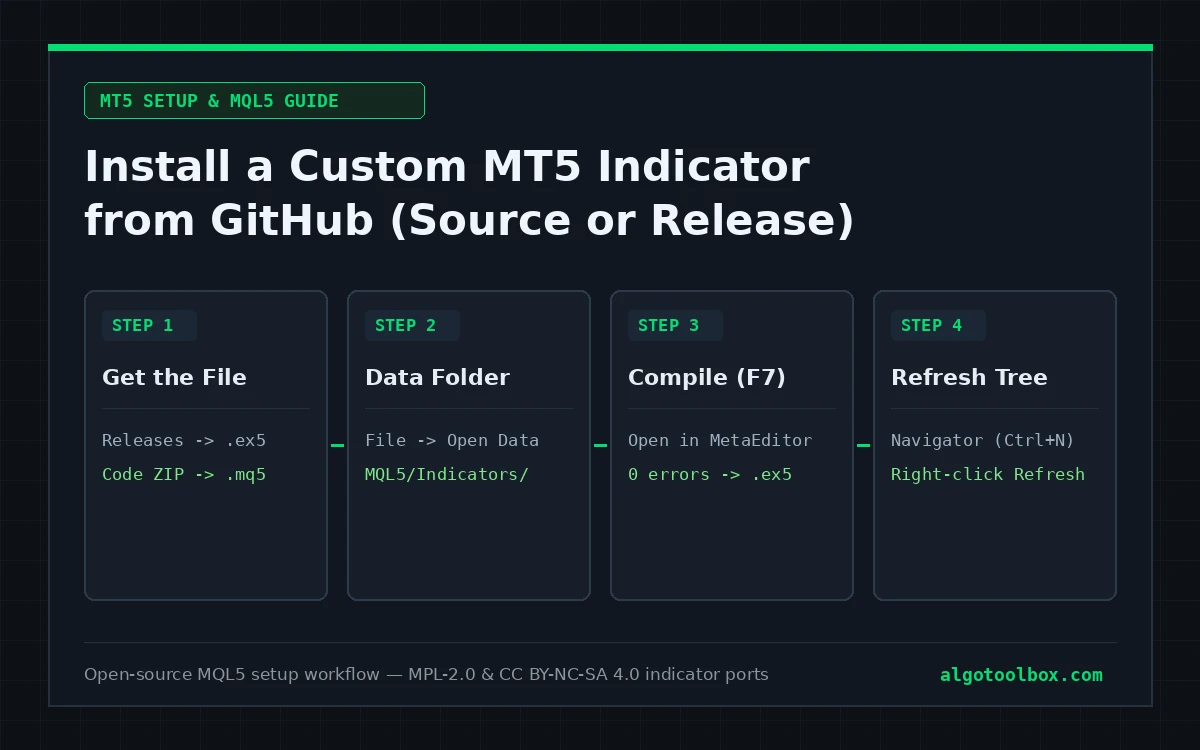
Most tutorials explaining how to install MT5 indicator from GitHub repositories skip the only step that actually matters: where the .mq5 file has to physically live before you press Compile. Get that path wrong and the indicator compiles cleanly, reports zero errors, and never appears in your Navigator — which is why trading forums stay full of people insisting their download is broken when it is sitting on their Desktop.
This guide walks through installing and compiling custom MQL5 source files using the six open-source indicator ports published on AlgoToolbox as concrete examples. It assumes a desktop MetaTrader 5 installation on Windows and basic familiarity with file paths; no prior MQL5 coding background is needed.
What You Are Installing
Each of the six indicators below has both an AlgoToolbox documentation page and a public GitHub repository containing the full MQL5 source code and licence notices:
| Indicator | Repo version | Source file in repo | GitHub repository | Licence |
|---|---|---|---|---|
| FVG Sniper MT5 | 1.02 | FVGSniper.mq5 |
FVG-Sniper-MT5-Indicator | MPL-2.0 |
| Liquidity Hunter MT5 | 1.00 | src/LiquidityHunter.mq5 |
Liquidity-Hunter-MT5-Indicator | MPL-2.0 |
| DiNapoli Levels MT5 | 1.00 | DiNapoli Levels.mq5 |
DiNapoli-Levels-MT5-Indicator | CC BY-NC-SA 4.0 |
| Stochastic Range Regime MT5 | 1.00 | Stochastic Range Regime.mq5 |
Stochastic-Range-Regime-MT5-Indicator | CC BY-NC-SA 4.0 |
| Streak Reversal Indicator | 1.00 | Streak Reversal Indicator.mq5 |
Streak-Reversal-Indicator | MPL-2.0 |
| Reaction Level Matrix MT5 | 1.02 | ReactionLevelMatrix.mq5 |
Reaction-Level-Matrix-MT5-Indicator | MPL-2.0 |
Two other builds on this site — 15M Gold Scalper (v1.08) and Icarus Grid Bias MT5 (v1.04) — are Expert Advisors rather than chart indicators. Their setup notes live on their own pages because an EA introduces execution questions an indicator never touches: account permissions, position sizing, and the Algo Trading switch.
Before You Start: Source Tree vs Release ZIP
GitHub gives you two different download buttons on a repository page, and confusing them causes half of all install problems:
- GitHub Releases (or the Download button on an AlgoToolbox product page): packages a versioned archive that already includes a compiled
.ex5binary alongside the source. If you grab a pre-built.ex5from Releases, you can skip Step 3 (MetaEditor compilation) and go straight from Step 2 to Step 4. - The green
Code → Download ZIPbutton (orgit clone): downloads a snapshot of the repository’smainsource branch. On five of the six repositories above (all except Streak Reversal), themainbranch is source-only — you receive.mq5code, not a compiled.ex5, and you compile it yourself in MetaEditor. Most third-party open-source MQL5 repositories on GitHub work the exact same way.
Compiling from source has three practical consequences worth stating plainly:
- You own the local binary. When you compile
.mq5source against your own MetaEditor build, runtime behaviour depends on your local compile and terminal version rather than a vendor-locked binary. - Future terminal builds can introduce new compiler warnings. MQL5 updates occasionally tighten type or event-handler checks. Source that compiled cleanly on the build we tested may emit warnings under a later terminal release.
- Read the repository caveats before trusting the chart output. Check
KNOWN_ISSUES.md(FVG Sniper, Liquidity Hunter),COMPATIBILITY.md(DiNapoli Levels, Stochastic Range Regime), orREADME.mdbefore trading around any plotted level. Those files record where the MT5 port intentionally or structurally differs from the TradingView original.
Step 1 — Get the Source onto Your Machine
If you want to inspect or compile the MQL5 source when you install MT5 indicator from GitHub repositories, pick either method below.
Option A — Download the branch ZIP. On the GitHub repository page, click Code → Download ZIP and extract the archive anywhere temporary. Locate the .mq5 file inside (at the root folder for most of our ports, or inside src/ for Liquidity Hunter).
Option B — Clone with Git. If you already use Git and want easy pulls when a port updates:
git clone https://github.com/atoskueko/FVG-Sniper-MT5-Indicator.gitEither route works. What matters is that you extract the actual .mq5 file — never drop an unextracted .zip archive or Windows shortcut into MetaTrader’s data directory.
Step 2 — Put It in the Right Folder
Do not guess the Windows AppData path or create an Indicators folder by hand. Multiple MT5 installations create different hashed terminal directories under AppData\Roaming\MetaQuotes\Terminal\, so let the running terminal open its own active folder:
- Open MetaTrader 5.
- Click File → Open Data Folder.
- In the File Explorer window that opens, navigate into
MQL5→Indicators.
Copy your .mq5 file (or pre-built .ex5 file from a Release ZIP) directly into MQL5\Indicators\. Do not put an indicator into MQL5\Experts\, MQL5\Scripts\, or MQL5\Include\, and do not leave it on your Desktop. Creating a clean subfolder such as MQL5\Indicators\AlgoToolbox\ is fine — the indicator will simply appear inside that submenu in Navigator.
Why this step catches people out: MetaEditor will happily open and compile an .mq5 file sitting anywhere on your disk, and it writes the compiled .ex5 right next to that source file. If FVGSniper.mq5 is sitting in Downloads or on your Desktop, MetaEditor reports 0 errors, 0 warnings, writes FVGSniper.ex5 onto your Desktop, and your MT5 terminal never sees it. That single path mistake accounts for most “the indicator won’t show up” complaints.
Step 3 — Compile in MetaEditor
If you copied an .mq5 source file in Step 2, compile it into an executable .ex5:
- Inside MetaTrader 5, press F4 to launch MetaEditor.
- In MetaEditor’s left-hand Navigator panel, expand
Indicatorsand double-click your.mq5file. - Press F7 (or click Compile on the toolbar).
- Inspect the Errors tab at the bottom of MetaEditor. Confirm the summary line reads
0 errors. Compiler warnings are usually harmless type or truncation notices, whereas any non-zero error count means no fresh.ex5was written — fix or report the error before returning to the terminal.
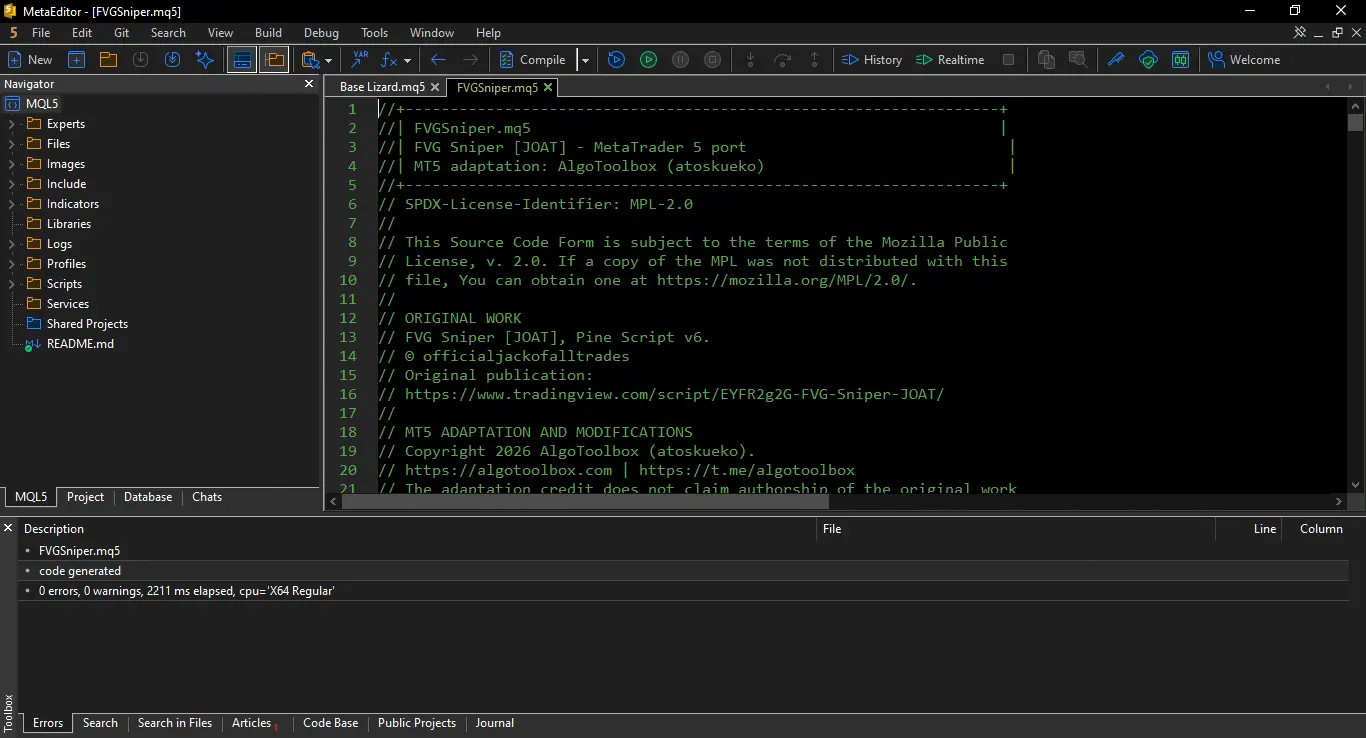
When compilation succeeds, MetaEditor creates the matching .ex5 file right alongside your .mq5 inside MQL5\Indicators\. That .ex5 binary is the file MetaTrader 5 actually executes.
Step 4 — Make the Terminal Notice
MetaTrader 5 caches its Navigator directory tree at startup, so a newly copied or compiled .ex5 will not always appear automatically, especially if you dropped in a pre-built binary without compiling inside MetaEditor.
Switch back to MetaTrader 5, open the Navigator panel (Ctrl+N), right-click anywhere on Indicators, and click Refresh. Your indicator will now appear alphabetically under Indicators (or inside the subfolder you chose).
Step 5 — Attach It and Check It Is Working
Double-click the indicator in Navigator or drag it onto an open chart, review its Inputs tab, and click OK. Then verify it is running cleanly in three quick steps:
- Check the chart canvas. Zones, lines, arrows, or dashboard labels should appear once bars load. If the chart stays blank, check the troubleshooting table below.
- Check the Data Window (Ctrl+D). Move your crosshair across completed candles; any plotted indicator buffers should display numeric values (or blank/empty markers on non-event bars) in the Data Window.
- Check the Toolbox → Experts tab (Ctrl+T). Custom indicators write initialization errors, missing-history notices, and runtime array faults to the Experts log tab — not the Journal tab.
One point worth keeping clear: custom indicators only read price history and draw on charts. None of the six ports above can send orders or size positions, and you do not need to enable the Algo Trading toolbar button for an indicator to calculate or plot. Anyone telling you to turn on Algo Trading so an indicator can draw is confusing indicators with Expert Advisors.
Troubleshooting: What Each Symptom Actually Means
| Symptom | Usual cause | Fix |
|---|---|---|
Compiles with 0 errors, nothing in Navigator |
.mq5 was outside MQL5\Indicators\, so .ex5 landed on Desktop or Downloads |
Move .mq5 into File → Open Data Folder → MQL5\Indicators\, press F7 again, Refresh Navigator |
Copied .ex5 into MQL5\Indicators\, still missing |
Navigator directory cache has not reloaded | Right-click Indicators in Navigator (Ctrl+N) → Refresh |
| Compile error mentioning missing include or file | Repository requires companion files or was partially downloaded | Extract the full repository ZIP intact and keep original file names |
| Indicator attaches to chart but draws nothing | Too few historical bars loaded, or unsupported symbol/timeframe | Scroll chart left or press Home to pull broker history; check Toolbox → Experts |
| Blank output on the oldest bars of the chart | Normal lookback warm-up period (e.g. ATR, EMA, or swing window) | Scroll left to load deeper history or raise Tools → Options → Charts → Max bars in chart |
| Levels or signals differ from TradingView | Broker feed vs TradingView feed, bar-close timing, or documented port limits | Read the repo’s KNOWN_ISSUES.md or COMPATIBILITY.md — expected cross-platform difference |
Edits to .mq5 do not change chart behaviour |
Compile failed with an error (old .ex5 stayed active) or edited a duplicate copy |
Confirm 0 errors in MetaEditor, check .ex5 modified timestamp, Refresh and re-attach |
Why an MT5 Port Will Not Match TradingView Tick for Tick
Before concluding your compile went wrong because two candles look slightly different from TradingView, remember that Pine Script and MQL5 do not run on the same price feed or execution engine.
TradingView indicators calculate on TradingView’s aggregated or exchange-specific feed using Pine’s built-in request.security() rules for higher timeframes. MetaTrader 5 indicators calculate on your specific broker’s bid/ask history, subject to how many bars your terminal has synchronized locally. Three normal differences follow:
- Higher-timeframe levels can shift or step differently. A daily or H4 zone built from your broker’s server-time candles (for example GMT+2/GMT+3) will not match a daily bar sliced at UTC or New York midnight on TradingView.
- Intrabar and historical recalculation schedules differ. Pine scripts and MQL5
OnCalculate()loops handle live forming bars, history backfills, and object replacements differently unless explicitly locked to closed bars. - Early chart bars depend on loaded lookback depth. EMAs, ATR stops, and pivot detectors need warm-up history before their values stabilize.
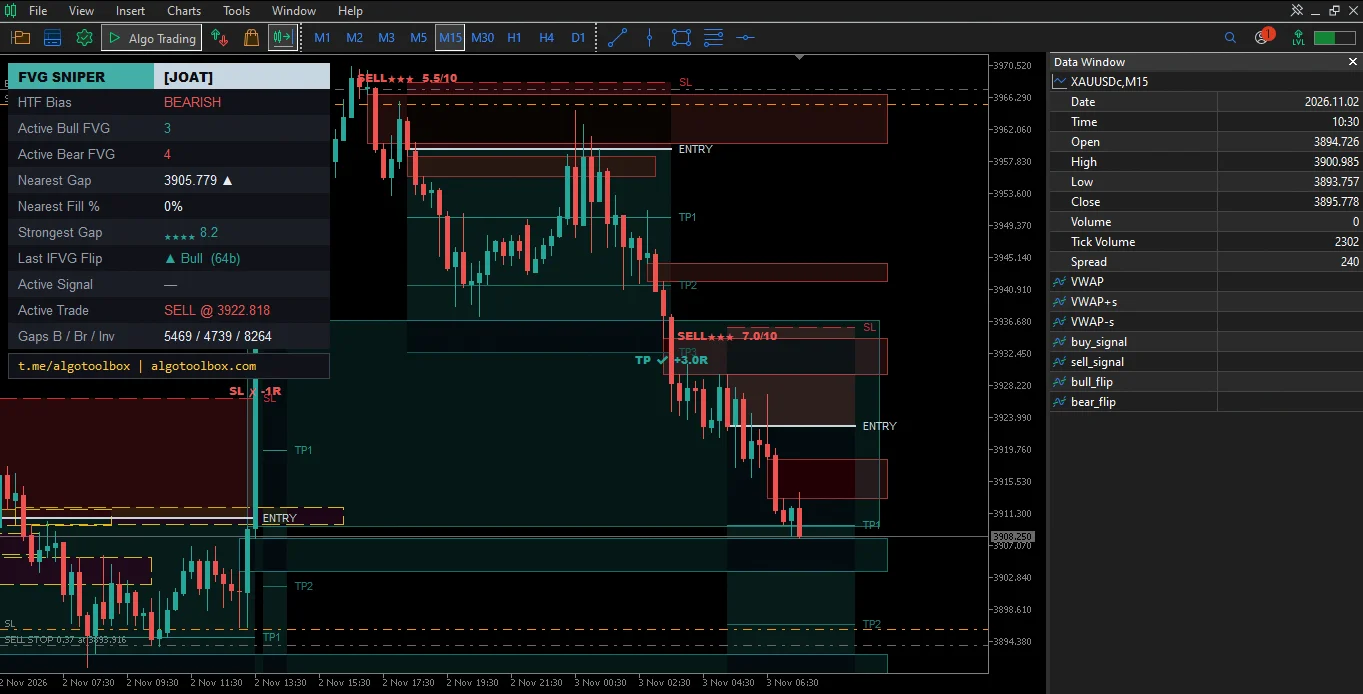
That is why our repositories ship KNOWN_ISSUES.md or COMPATIBILITY.md alongside the code rather than pretending cross-platform ports are identical clones.
Licence Rules: What You May and May Not Redistribute
Open source does not mean “strip the header and repost the .ex5 on Telegram.” Always check the LICENSE and NOTICE.md files inside the repository you downloaded — our six indicator ports fall under two different licences:
- Mozilla Public License 2.0 (
MPL-2.0) — used on FVG Sniper, Liquidity Hunter, Streak Reversal, and Reaction Level Matrix. You may use, modify, and redistribute both the source and compiled.ex5, provided you preserve copyright/licence notices and tell anyone receiving a compiled.ex5how to obtain the corresponding.mq5source code (including any modifications you made to MPL-covered files). - Creative Commons
CC BY-NC-SA 4.0— used on DiNapoli Levels and Stochastic Range Regime, matching their original TradingView script terms. You may share and adapt the code for non-commercial purposes only, with full credit to the original author and port author, and any derivative must be shared under the sameCC BY-NC-SA 4.0licence. Selling aCC BY-NC-SAindicator or bundling it into a paid commercial package breaches the licence.
Across both licences, never imply that the original Pine Script author endorses your modified build. For our own distribution terms across AlgoToolbox tools, see our End-User Licence Agreement (EULA).
Where to Go Next
- FVG Sniper MT5 — fair value gap grading, inputs, and known Pine-vs-MT5 differences
- Liquidity Hunter MT5 Port — liquidity sweeps, BOS/CHoCH structure, and reference risk levels
- DiNapoli Levels MT5 Port — DiNapoli Fibonacci confluence levels in MQL5
- Stochastic Range Regime MT5 Port — range vs trend regime filter and compatibility notes
- Streak Reversal Indicator — consecutive-bar exhaustion logic and limits
- Reaction Level Matrix MT5 Port — multi-level reaction zones in MT5
- Our Builds — every MQL5 port and original tool published on AlgoToolbox
- How We Test — how we separate visual/source verification on ports from Strategy Tester backtests
FAQ
Do I need an .ex5 file to run an MT5 indicator, or is .mq5 enough?
MetaTrader 5 only executes compiled .ex5 binaries on charts. If you download an .mq5 source file from a GitHub branch, you press F7 in MetaEditor once to generate the .ex5 locally; if you download a Release ZIP that already contains the .ex5, you can copy it straight into MQL5\Indicators\ and refresh Navigator.
Why did my MT5 indicator compile with 0 errors but never appear in Navigator?
Almost always because the .mq5 source file was sitting outside your active terminal’s MQL5\Indicators\ directory (for example in Downloads or on your Desktop). MetaEditor writes the compiled .ex5 next to the source file, so move the .mq5 into File → Open Data Folder → MQL5\Indicators\, press F7 again, and right-click Navigator → Refresh.
Will a custom MT5 indicator place trades automatically?
No. Custom indicators in MetaTrader 5 can read price data, draw levels or buffers, and trigger alerts, but the MQL5 runtime forbids indicators from calling order-execution functions. Automated trading requires an Expert Advisor installed under MQL5\Experts\ with Algo Trading enabled.
Do I need to turn on Algo Trading for a GitHub indicator to work?
No. The Algo Trading switch in the MT5 toolbar only governs automated order placement and trading permissions for Expert Advisors and scripts. All six open-source indicators covered in this guide calculate and draw with Algo Trading turned off.
Can I share a compiled .ex5 file from GitHub with another trader?
Check the repository’s LICENSE file first: under MPL-2.0 you may share the .ex5 if you keep attribution intact and provide a clear link to the corresponding .mq5 source, whereas under CC BY-NC-SA 4.0 sharing must also remain strictly non-commercial and under the same licence.
⚠️ Risk & Transparency Notice: All indicators, scripts, and backtest results on AlgoToolbox are for educational and testing purposes only. Trading Forex, CFDs, and cryptocurrencies carries significant financial risk. Past performance does not guarantee future results. This article may contain contextual affiliate links to tools or brokers we use. Read our full Risk Disclaimer.